
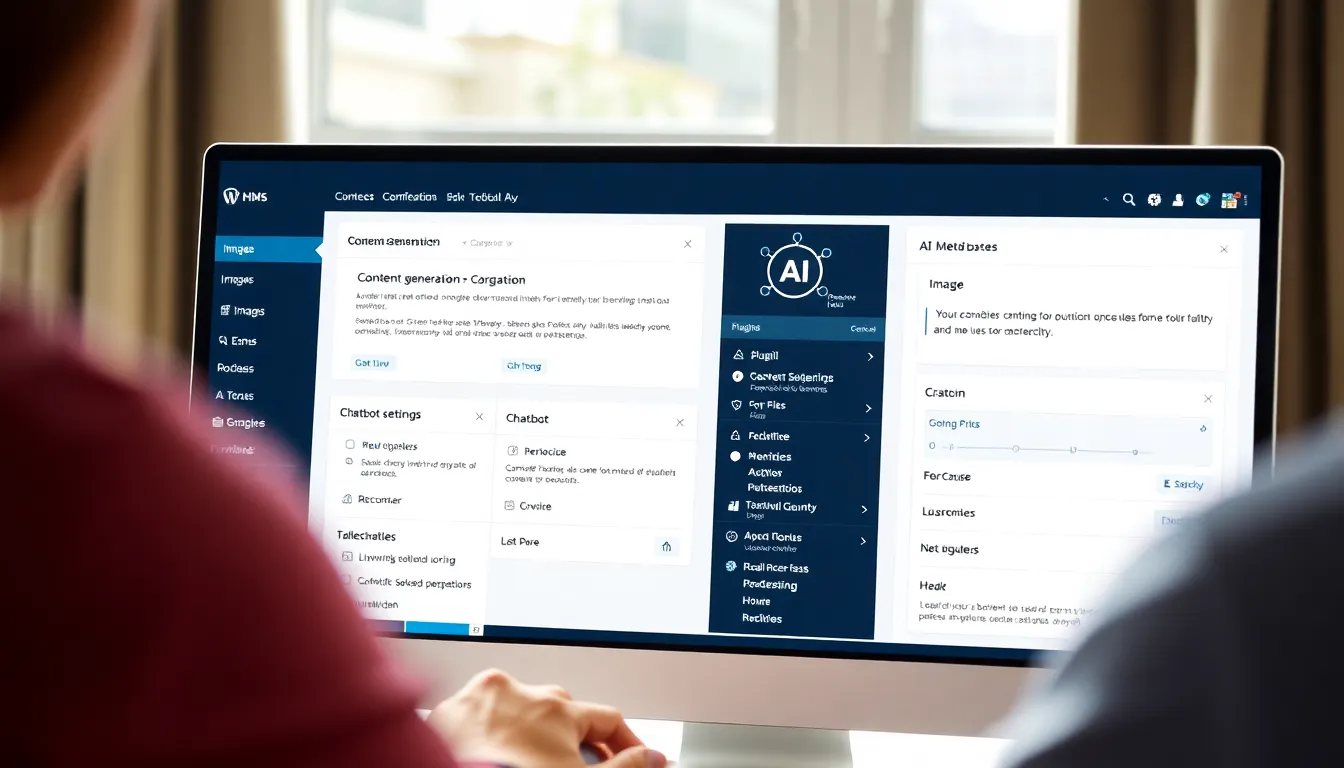
If you're testing AI plugins on a real WordPress site in 2026, you need to know which ones actually work inside the dashboard and which ones add complexity without solving the problem. This article walks through five AI plugins I installed and tested on a live site, showing you what each one does in the admin interface, where it sits in your workflow, and which specific tasks it handles better than the alternatives. You'll see exactly what to expect when you activate each plugin and what breaks when the setup goes wrong.
The setup
You're working in Plugins > Add New and searching for AI tools that integrate directly into the WordPress editor, Media Library, or customer-facing pages. These plugins connect to AI providers like ChatGPT, Claude, or Gemini through API keys you add in their settings panels. They do not replace your hosting or existing SEO plugin; they sit alongside them and add new buttons or panels inside the editor, media uploader, or WooCommerce product screens.
AI content assistants that live inside the block editor
The first category I tested was AI writing assistants that add a sidebar or toolbar button directly into the Gutenberg editor. When you're writing a post or page, you click the AI button, type a prompt, and the plugin generates text that drops into your current block or creates new blocks below.
I tested two plugins in this space. The first one adds a panel to the right sidebar under Document settings. You enter your API key for ChatGPT or Gemini in Settings > AI Content, then when you're editing a post, you see a new section labeled "Generate Content." You type a topic or headline, choose a tone (professional, casual, technical), and click Generate. The plugin sends your prompt to the API and inserts three to five paragraphs into a new paragraph block.
The second plugin takes a different approach. It adds a small floating button near the block inserter. When you click it, a modal pops up where you can ask for a full draft, a list, a product description, or a meta description. The advantage here is speed - you don't leave the editor, and the modal stays open while you refine your prompt. Both plugins let you regenerate or edit the output before committing it to the page.
What matters in practice is how the plugin handles your existing content. The sidebar-based plugin can read the text you've already written and use it as context for the next section, which is useful when you're halfway through a post and need a transition paragraph. The modal-based plugin treats each generation as standalone unless you manually copy your existing text into the prompt field.
AI image generation inside the Media Library
AI image tools in 2026 let you create custom visuals without leaving WordPress. The plugin I tested adds a new tab to the Media Library modal labeled "Generate Image." When you're inserting a featured image or adding an image block, you click that tab, type a description of what you want, and the plugin sends the prompt to an AI image service (DALL-E or Stable Diffusion, depending on which API you configured).
You configure the API connection in Settings > AI Images. You paste your API key, choose the default image size (square, landscape, portrait), and set whether the plugin should save generated images permanently or treat them as drafts until you confirm. Once that's done, the Generate Image tab appears everywhere the media uploader appears - featured images, image blocks, galleries, WooCommerce product images.
The workflow is straightforward. You type "red running shoe on white background" or "modern office desk with laptop and coffee," click Generate, and wait ten to fifteen seconds. The plugin displays the result as a thumbnail. If you like it, click Use This Image, and it inserts into your post or product exactly like an uploaded file. If you don't like it, you can regenerate with the same prompt or edit the prompt and try again.
The plugin creates each image as a real media file in your library, so you can reuse it later. The filename is auto-generated from your prompt (red-running-shoe-on-white-background-1.png), and the alt text field is pre-filled with the prompt text. You can edit both after the fact in the media library grid.
AI chatbots for customer support on WooCommerce sites
If you're running WooCommerce, AI chatbots in 2026 sit on your product pages and order-confirmation pages to answer customer questions. The plugin I tested adds a chat widget to the bottom-right corner of every page. Customers type questions like "What's your return policy?" or "Does this shirt come in large?" and the chatbot responds using information you've trained it on.
You configure the chatbot in WooCommerce > AI Chat. First, you connect your ChatGPT or Claude API key. Then you add training data - either by pasting your FAQ page content, uploading a text file with common questions and answers, or letting the plugin scan your existing WooCommerce product descriptions and policies. The plugin uses that data to build a knowledge base, and when a customer asks a question, the AI searches the knowledge base and generates a natural-language answer.
The plugin logs every conversation in a dashboard at WooCommerce > Chat Logs. You can see what customers asked, what the bot answered, and whether the customer marked the answer as helpful. If the bot gets a question it can't answer, it either says "I don't have that information" or offers to send the question to your support email, depending on how you configured the fallback behavior.
One useful feature is product-specific training. You can go to any product edit screen, scroll to the new "AI Chat Training" meta box, and add extra information the bot should know about that product. For example, if you sell a jacket and customers always ask whether it's waterproof, you can add "This jacket is water-resistant but not fully waterproof" in the training box. The bot will use that answer when someone asks about that specific product.
SEO plugins with AI metadata and keyword tools
Modern SEO plugins now include AI features for generating meta descriptions, analyzing content, and suggesting keywords. The plugin I tested integrates with your existing SEO plugin (Yoast or Rank Math) and adds an AI assistant to the SEO meta box that appears below the post editor.
When you're editing a post, the AI assistant reads your content and suggests a focus keyphrase based on what you've written. It also generates three meta description options. You click the one you like, and it fills the meta description field automatically. If none of the options work, you can click "Regenerate" and get three new suggestions.
The plugin also adds a content analysis panel that checks whether your post uses the focus keyphrase in the title, first paragraph, and subheadings. This is the same kind of analysis existing SEO plugins do, but the AI version goes further by suggesting specific sentence rewrites to improve keyword density without making the text sound robotic. You see the suggestion as a yellow highlight in your content, click it, and the plugin shows you the rewritten sentence. You can accept it or ignore it.
You configure the AI provider and API key in Settings > SEO AI. The plugin supports ChatGPT and Claude. One setting I found useful is "Analysis Aggressiveness," which controls whether the plugin makes conservative or bold suggestions. Conservative mode only suggests changes when your content clearly lacks the keyword. Bold mode suggests rewrites even when your content is already decent.
What breaks
The API key is valid but the plugin returns a "quota exceeded" error
This happens when your API account with ChatGPT, Claude, or Gemini has hit its usage limit. The plugin doesn't check your account balance before sending a request, so you only find out when the API responds with an error. The fix is to log into your AI provider's dashboard, check your billing and usage, and either upgrade your plan or wait until your quota resets. Some plugins cache this error and show it for several minutes even after you fix the quota issue. Go to Settings > AI [Plugin Name] and look for a "Clear API Cache" button or deactivate and reactivate the plugin to force a fresh connection.
Generated images appear in the Media Library but won't insert into posts
This occurs when the plugin creates the image file but fails to register it properly with WordPress's attachment system. The image exists on the server in wp-content/uploads, and you can see it in the Media Library grid, but when you try to insert it, the editor shows a broken-image icon or a "file not found" error. The cause is usually a file-permission issue or a conflict with a caching plugin that's blocking the attachment post type from being written to the database. Fix it by going to Media > Library, finding the broken image, clicking Edit, and re-saving it without changing anything. That forces WordPress to rebuild the attachment metadata. If that doesn't work, check your file permissions - wp-content/uploads should be set to 755 and the files inside to 644.
The chatbot answers correctly in the preview but returns generic responses on the live site
This happens when the plugin's training data is stored in a transient or cache that expires. You test the chatbot in the plugin's preview panel, it works perfectly, but when a real customer uses it on the front end, the bot says "I don't have that information" or gives a generic answer like "Please contact support." The plugin is failing to load the knowledge base on the public-facing page. The fix is to go to WooCommerce > AI Chat > Training Data and click "Re-sync Knowledge Base." That rebuilds the data in a persistent format. Also check whether you have a page-caching plugin active - if it's caching the chat widget's HTML, the bot won't load the current training data. Add the chat widget's container class (usually something like .ai-chatbot-widget) to your caching plugin's exclusion list.
FAQs
Can I use one API key across multiple AI plugins?
Yes. If you have a ChatGPT API key, you can paste it into every plugin that supports ChatGPT. The API provider doesn't care how many plugins are using the same key - it only tracks total usage across all requests. Just be aware that your usage limit applies to the combined activity of all plugins, so if you're running an AI content plugin, an AI image plugin, and a chatbot plugin all on the same key, you'll hit your quota faster.
Do these plugins work with multisite installations?
Most of them do, but you configure the API key at the network level or per-site depending on the plugin. Network-activate the plugin in Network Admin > Plugins, then go to Network Admin > Settings > AI [Plugin Name] to add a global API key that all subsites inherit. Some plugins let individual site admins override the network key with their own. Check the plugin's documentation to see whether it supports per-site or network-only configuration.
What happens to the generated content if I deactivate the plugin?
Any text, images, or metadata the plugin created stays in your database. Deactivating the plugin removes the UI buttons and settings panels, but the content itself is normal WordPress data - posts, images, meta descriptions. You won't lose anything. If you reactivate the plugin later, it doesn't try to regenerate or modify the content it created previously.
Can I train the chatbot on private product data without exposing it publicly?
Yes. The training data you add in WooCommerce > AI Chat > Training Data is stored in your WordPress database and sent to the AI provider only when a customer asks a question. The AI provider processes the data to generate an answer but doesn't store it long-term or use it to train future models, assuming you're using a provider with a no-training policy (ChatGPT API and Claude API both offer this). Check your API provider's terms to confirm.
Do AI SEO plugins replace manual keyword research?
No. They suggest keywords based on the content you've already written, but they don't analyze search volume, competition, or trends. You still need to do keyword research using a tool like Google Keyword Planner or a dedicated SEO platform, then write your content targeting those keywords. The AI plugin helps you optimize the content for the keywords you chose, but it doesn't choose the keywords for you.
Verdict: Use an AI content assistant if you're writing blog posts or landing pages and want to speed up drafting. Use an AI image plugin if you need custom product images or featured images and don't want to pay for stock photos. Use an AI chatbot if you're running WooCommerce and get repetitive support questions that your product descriptions and FAQ page already answer.