

Every WordPress and WooCommerce site owner faces the same question: what exactly should I back up, and how often should I do it? The answer depends on how frequently your site changes and what data you cannot afford to lose. A portfolio site that updates once a month has different needs than a WooCommerce store processing orders every hour. This article walks through what components you need to capture in a backup, how to set a schedule that matches your site's activity level, and the specific retention strategies that protect you from both catastrophic failures and slow-creeping problems you only notice weeks later.
The setup
A complete WordPress backup consists of two distinct components: your site files (wp-content folder with themes, plugins, uploads, and the core WordPress files) and your database (stored in MySQL or MariaDB, containing posts, pages, products, orders, users, comments, and all settings). Most hosting control panels offer one-click backup tools under a Backups or Backup Manager menu, and WordPress plugins like UpdraftPlus or BackWPup handle both components automatically. This is not the same as exporting content through Tools > Export, which only grabs posts and pages in XML format and leaves out your database structure, theme files, and uploaded media.
What goes into a backup
Your WordPress installation has two parts that change independently. The files live in your hosting account's file system, typically under public_html or www. The wp-content folder holds everything you have added: themes in wp-content/themes, plugins in wp-content/plugins, and uploaded images, PDFs, and other media in wp-content/uploads. The core WordPress files in the root directory change only during updates, so they matter less for daily backups, but you still need them for a full restore.
The database stores everything that makes your site dynamic. Posts, pages, custom post types, WooCommerce products, orders, customer accounts, comments, menu structures, widget configurations, plugin settings, and theme options all live in database tables. When you write a post or a customer places an order, the files do not change - the database does. When you install a plugin or upload an image, the files change but the database also adds a record of that attachment or plugin's settings.
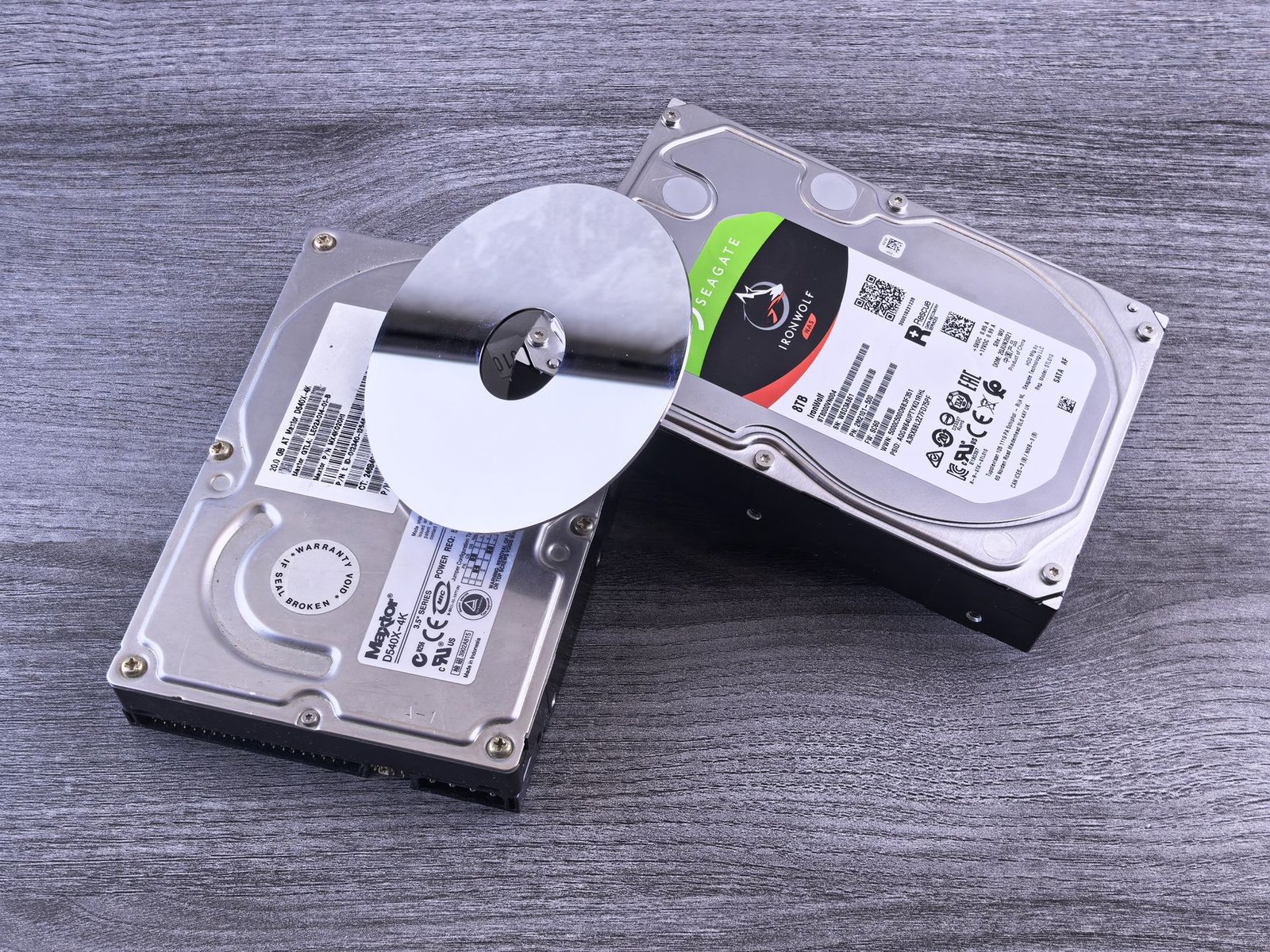
Backing up only one component leaves you with an incomplete snapshot. If you back up files but not the database, you restore your themes and plugins but lose all content, orders, and users. If you back up the database but not the files, you restore your content but lose the theme code, plugin functionality, and all uploaded images. WordPress documentation emphasizes that both parts are required for a complete recovery.
How often to run backups
Backup frequency depends on how often your site changes and what tolerance you have for data loss. A WooCommerce store processing fifty orders a day cannot afford to lose a day of transactions, so hourly or real-time database backups become necessary. A portfolio site that you update once every few weeks can run weekly backups without much risk. The question is not what schedule sounds responsible, but how much work you are willing to redo if you restore from the last backup.
For most small business WordPress sites with regular blog posts, product updates, or contact form submissions, daily backups strike the right balance. You back up the database every night and the files once a day, accepting that you might lose up to 24 hours of content in a worst-case scenario. For sites with higher activity - membership platforms with constant user registrations, booking systems capturing appointments, or stores with steady order flow - you move to hourly database backups while keeping daily file backups. Files change less frequently than the database, so you do not need to back them up as often unless you are uploading media or installing plugins multiple times a day.
Less active sites can stretch to weekly or even monthly backups. A brochure site with five static pages that you touch twice a year does not need daily snapshots. The critical rule is to run a manual backup before any major change: before updating WordPress core, before switching themes, before installing a new plugin that touches your database schema, and before bulk-editing products or posts. Automated schedules protect you from forgetting, but they do not replace the intentional backup you run right before a risky operation.
Where to store backups and how many to keep
Keeping your backup on the same server as your live site defeats the purpose if the server fails, gets hacked, or the hosting account is suspended. The 3-2-1 rule provides a framework: keep three copies of your data, store them on two different types of media, and keep one copy offsite. For a WordPress site, this means your live site is the first copy, a backup stored on your web server or in your hosting account is the second, and a third copy stored in cloud storage like Dropbox, Google Drive, or Amazon S3 gives you the offsite protection.
Most backup plugins let you send copies to remote storage automatically. You configure your cloud storage credentials once, and the plugin uploads each backup after creating it. Experts recommend keeping multiple backup versions rather than overwriting the same file each time. If you only keep the most recent backup and it happens to be corrupted or captures a problem you did not notice immediately, you have no older version to fall back on.
A retention policy of at least 30 days gives you a month of history. Many site owners keep seven daily backups, four weekly backups, and three monthly backups. This scheme lets you roll back to yesterday if you notice a problem quickly, to last week if the issue took a few days to surface, and to last month if you discover something went wrong weeks ago. For WooCommerce sites or membership platforms with compliance requirements or audit needs, longer retention periods of 90 days or a year make sense. Storage costs for compressed WordPress backups are low enough that keeping extra history is cheap insurance.
Automating and testing your backup process
Manual backups fail because you forget to run them at the exact moment you need one. Automated backups remove the dependency on memory. Most managed WordPress hosts include daily automated backups in their plans, but you should verify what they actually back up, how long they retain copies, and whether database and files are both included. Some hosts only keep backups for 14 or 30 days, which is not enough if you do not catch a problem quickly.
If your host does not provide adequate automated backups, a backup plugin fills the gap. You install it, set a schedule, configure remote storage, and let it run. The plugin handles both database exports and file archives, compresses them, and uploads them to your chosen destination. You check the backup log once a week to confirm backups are completing successfully.
The backup you never test is the backup that fails when you need it. Set up a staging environment - a separate WordPress installation on a subdomain or local server - and practice restoring from a backup at least once every few months. Download a backup file, extract it, upload the files to the staging server, import the database, update the site URL in the database, and confirm the site loads correctly. This process reveals whether your backup files are actually complete, whether you know how to restore them, and whether any critical component is missing. A backup that works in theory but fails in practice is worse than no backup at all because it gives you false confidence.
What breaks
Backup completes but database is empty or truncated
You run a backup, the plugin reports success, but when you inspect the downloaded SQL file or try to restore it, the database dump is either empty, ends abruptly mid-table, or contains only a few tables instead of all of them. This happens when the backup process times out before completing the database export, usually on large sites with hundreds of thousands of rows in order, log, or session tables. Your server's max_execution_time or memory limit cuts off the export partway through. The fix is to increase max_execution_time to 300 seconds or higher in your php.ini or .htaccess file, or switch to a backup method that exports the database in chunks rather than all at once. Some plugins offer a "split database into smaller files" option specifically for this scenario.
File backup excludes wp-content/uploads or skips large media files
Your backup includes themes and plugins but when you restore, all images return 404 errors or the uploads folder is empty. Many backup plugins exclude the uploads folder by default because it is the largest part of most WordPress sites, and they assume you will back it up separately or rely on CDN copies. Other plugins have a file size limit and silently skip files larger than 50MB or 100MB to avoid timeouts. Check your backup plugin's settings for exclusion rules and file size limits. Enable the option to include the uploads directory and increase or remove the file size threshold. If your uploads folder is enormous, you can back it up less frequently than the rest of the site - daily for everything else, weekly for uploads - since media files change less often than database content.
Restored site shows old content despite recent backup
You restore from what you believe is last night's backup, but the site shows content from a week ago. This occurs when your backup plugin or host runs backups on schedule but does not actually capture new data because it cannot access the database or files due to permission errors, or because a conflicting process locks the database during backup time. The backup file gets created with a current timestamp, so it looks recent, but it contains stale data copied from an older snapshot. Always verify backup file sizes and spot-check database dump contents. A WordPress database for an active site grows over time, so if your backup file is the same size week after week, something is wrong. Open the SQL file in a text editor and search for recent post titles or order numbers to confirm current data is present. If backups are not capturing new data, check file permissions on your wp-content directory and verify your database user has full read access.
FAQs
Do I need to back up WordPress core files if I can reinstall WordPress?
You can skip backing up the root-level WordPress core files like wp-admin and wp-includes if you are confident you can download a fresh copy of the same version from wordpress.org and reinstall it. The critical part is your wp-config.php file, which contains your database credentials and security keys, and any modifications you made to .htaccess or other core files. Many site owners back up everything the first time, then switch to incremental backups that only capture wp-content and the database for daily runs. This reduces backup size and speeds up the process, but you lose the convenience of a single restore package that includes everything.
Can I rely on my web host's backup system instead of running my own?
Host backups are a safety net, not a primary backup strategy. Many hosts keep backups for 14 to 30 days, and some only back up once a week or exclude certain directories to save storage space. If your host goes out of business, suspends your account for a billing issue, or suffers a catastrophic data center failure, their backups disappear with the server. You also depend on their restore process and timeline, which may take hours or days. Run your own automated backups to a remote location you control, and treat host backups as a bonus layer. If both fail, you have bigger problems, but you want redundancy so no single point of failure wipes out all your data.
Should I back up my staging site or only production?
Staging sites change frequently during development and testing, so their backups go stale quickly. Most people only back up production and accept that they can rebuild staging from a production backup if needed. The exception is when you are running a major migration, redesign, or bulk data import on staging that took days of work. In that case, back up staging before the final push to production so you can roll back the work-in-progress if something goes wrong during the transition. After you push staging to production, the work is captured in the production backup and you can let the staging backup expire.
What is the difference between a backup and a snapshot?
A backup is a copy of your files and database exported and stored separately from the original server. A snapshot is a point-in-time image of your entire server or virtual machine, including the operating system, installed software, and all data, stored at the infrastructure level by your hosting provider or cloud platform. Snapshots are faster to create and restore because they capture the entire disk state without exporting files, but they tie you to the same hosting environment. You cannot easily move a snapshot to a different host, while a backup consisting of files and a SQL dump is portable. Use snapshots for quick rollbacks and backups for long-term retention and migration.
How do I back up just the database for a quick recovery test?
You can export the database manually through phpMyAdmin or a command-line tool without waiting for a full backup to run. In phpMyAdmin, select your database from the left sidebar, click the Export tab, choose Quick export method and SQL format, and click Go. For command-line access, use:
mysqldump -u your_db_user -p your_db_name > backup.sqlReplace your_db_user and your_db_name with your actual database credentials from wp-config.php. This creates a backup.sql file in the current directory. Database-only exports are useful before running a plugin that modifies database structure, before bulk-editing posts or products, or when testing a restore on staging. You can restore the SQL file by importing it through phpMyAdmin or running:
mysql -u your_db_user -p your_db_name < backup.sqlVerdict: Run daily automated backups of both files and database if your site updates regularly, move to hourly database backups if you process orders or bookings throughout the day, and keep at least 30 days of backup history stored offsite in cloud storage separate from your web host. Test a restore on staging every quarter to confirm your backups actually work before you need them in an emergency.